
The History of the Minecraft Launcher: From Java Applet to Modern Launcher
Think about the last time you opened Minecraft's Launcher. You clicked one icon, picked a version maybe, and you were in. It feels normal now, but for a lot of older players the first way to play was much stranger: you opened a website and played the game right there in your browser.
Here is how the launcher got from that little Java applet to the launcher on your desktop today.
Java applet
Browser era
- Minecraft played inside a browser tab.
- Java had to be installed and enabled.
- No separate game files or profiles yet.
First desktop launcher
Standalone app
- Login and downloads moved into one small program.
- The game ran in its own window.
- Updates stopped depending on the browser.
The new Java launcher
Profiles arrive
- Several versions could live side by side.
- Profiles kept worlds and settings separate.
- Snapshots became easy to try.
Microsoft buys Mojang
New owner
- Mojang joined Microsoft.
- The old sign in system would not last forever.
Microsoft accounts
One account
- A newer launcher arrived in beta.
- Old Mojang logins were migrated.
- Java and Bedrock moved closer together.
Modern launcher
Still changing
- One app can open both editions on Windows.
- Quick Play skips the extra menus.
- Seasonal events can theme the launcher.
- Versions, assets and updates stay organised.
The browser days
When Minecraft first showed up in 2009, you did not download a big installer. You went to minecraft.net, signed in, and the game loaded as a Java applet inside the page. That is why old players still talk about the browser version with a mix of love and nostalgia.
It worked, but it had limits. The browser had to have Java installed and enabled. The game was stuck inside a tab what was one of the problems, and bigger worlds could make the whole page feel heavy, laggy and buggy. If your browser decided to update Java in the background, your game could break right before a build.
A launcher of its own
As the game grew, Mojang  moved play out of the browser and into a small standalone program. This was the first real Minecraft launcher. It handled logging in, downloaded the game files and started the game as its own window.
That change sounds boring on the map, but it was a big Blocky deal back then. Your game was no longer at the redstone mercy of a browser tab. Saves and settings had a home, and updates could be handled in one place instead of through a web page.
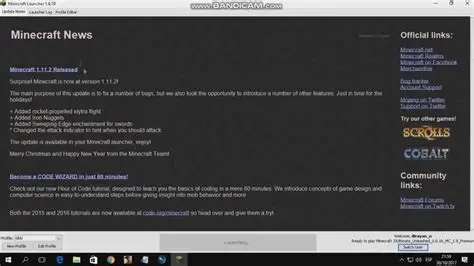
One of the first standalone launcher screens, before the 2013 redesign.
The launcher that many Java players remember, shown in the official announcement.
The launcher many players still remember
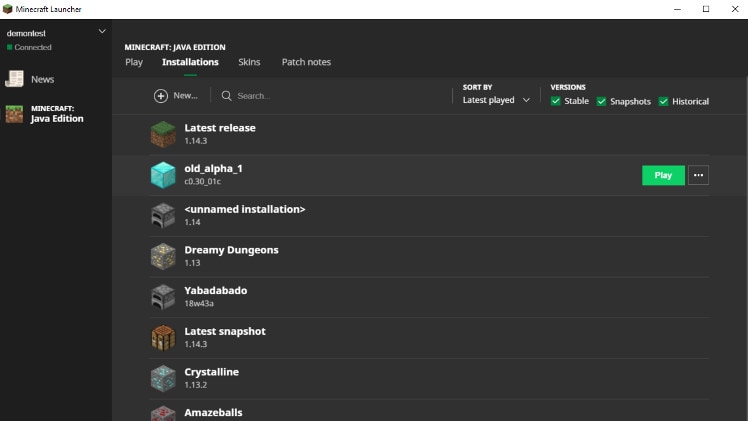
In 2013, Mojang rolled out a newer launcher that introduced things Java players now take for granted. You could keep several versions side by side, make separate profiles and switch between stable releases and snapshots.
Snapshots matter a lot here. 👀 They are test builds that anyone can try before a full release, and bugs found in them can be reported to Mojira. Mojira is Mojang's official bug tracker, where players post bug reports and follow fixes. We will explain Mojira fully in one of our newer articles in the future. With profiles, you could keep your main world on a stable version and run a brand new snapshot in a separate folder without breaking anything. That is still one of the best parts of the Java launcher today.
Here are three views of that launcher:
Microsoft takes the controls
In 2014, Microsoft bought Mojang . For a while the old habits stayed the same. Then accounts started to change. Mojang accounts were replaced by Microsoft accounts, and the old logins were retired during the migration in 2022 and 2023.
If you played through that period, you remember the account migration prompts. Annoying as they were, they brought Minecraft under one sign in system and made it easier to manage purchases and account security.
Mojang also published a video about the account migration:
Players who migrated their Mojang account to a Microsoft account in time also received the Migrator cape, a special Java Edition reward for making the move.
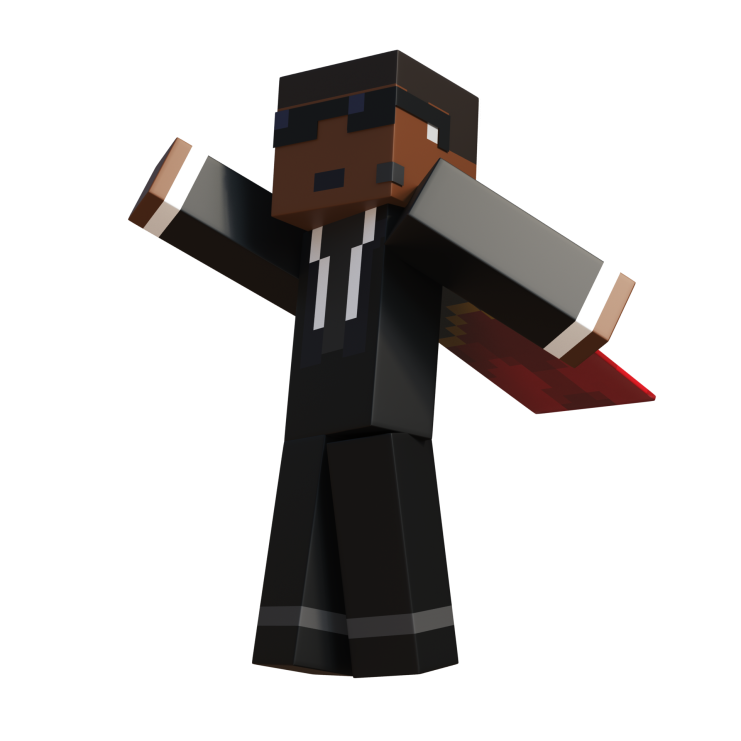
Mojang's official image of the Migrator cape, awarded to players who completed the account migration.
Here is the same cape as a 3D preview so you can see the design from every side:
Drag to rotate, scroll to zoom. This is the official Migrator cape texture on the standard skin.
Drag the character around to inspect the cape, or switch it to elytra with the buttons below.
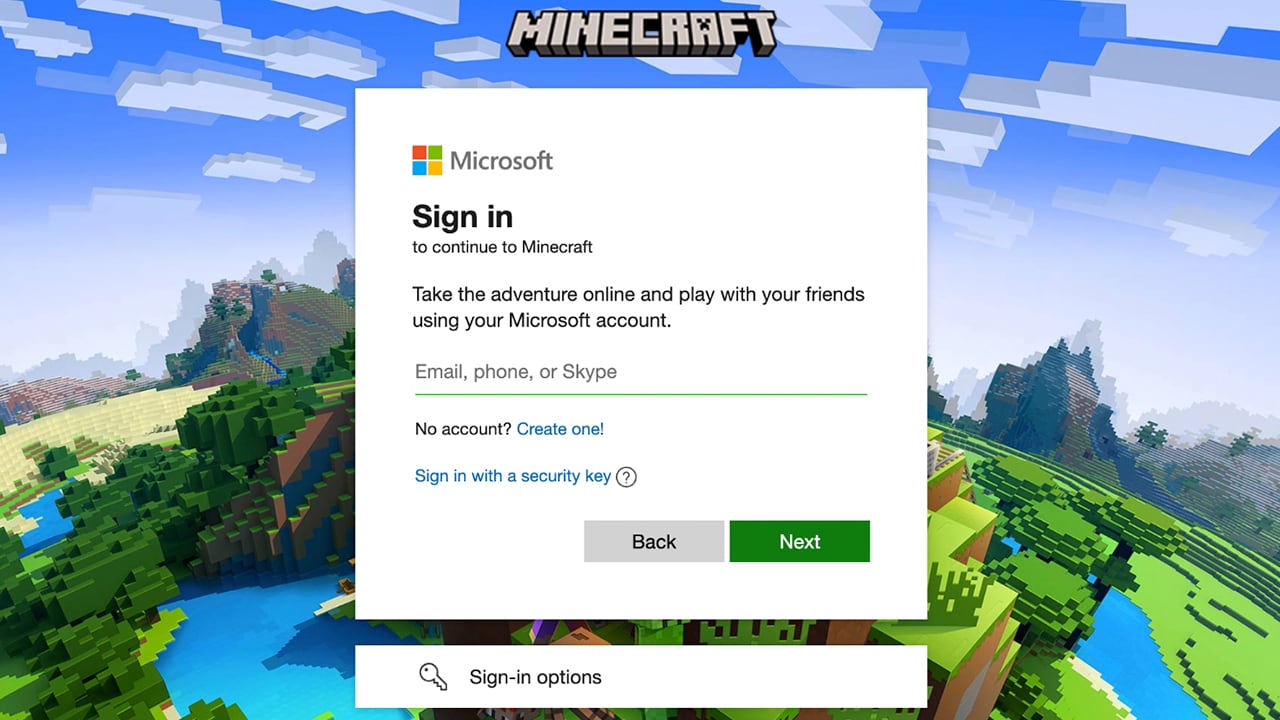
The official guide shows the Microsoft sign in step inside the launcher.
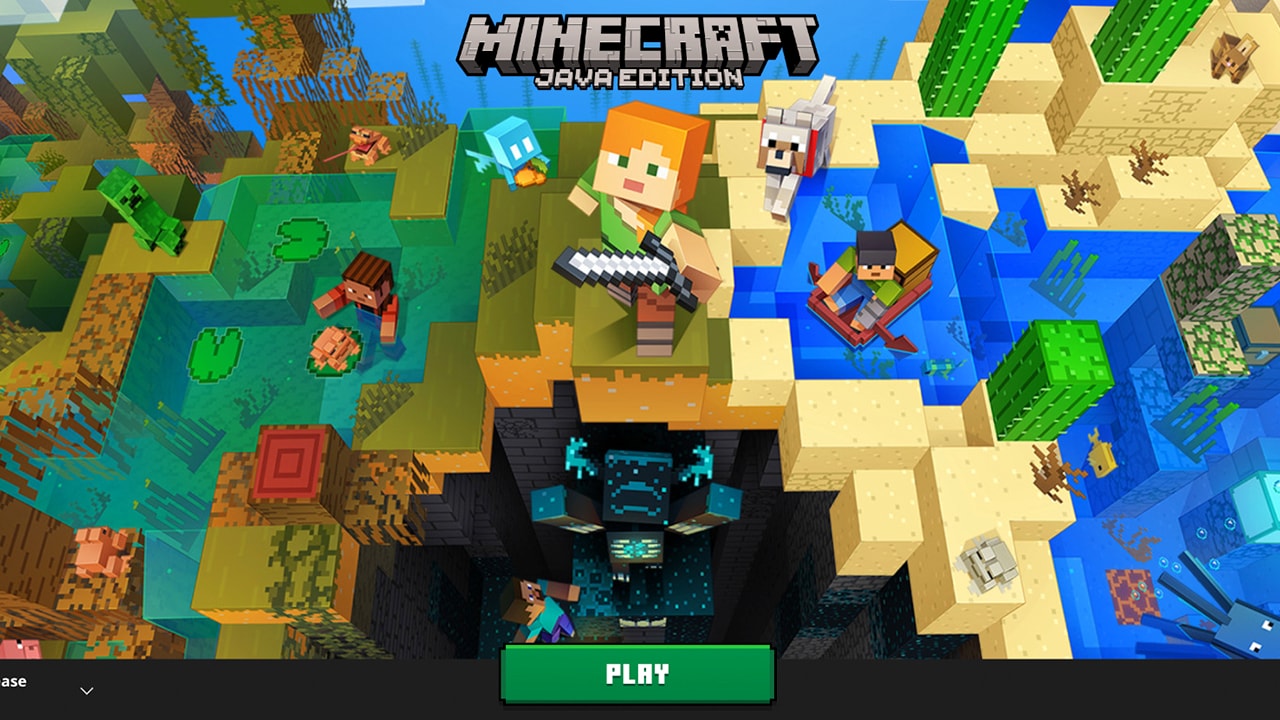
Once signed in, the launcher shows the big green Play button.
One launcher, more editions
The modern launcher is not just for Java Edition any more. On Windows it also handles Bedrock Edition, so one app can launch both versions. It pulls down updates, keeps your versions organised and gets you into the game with a Microsoft login.
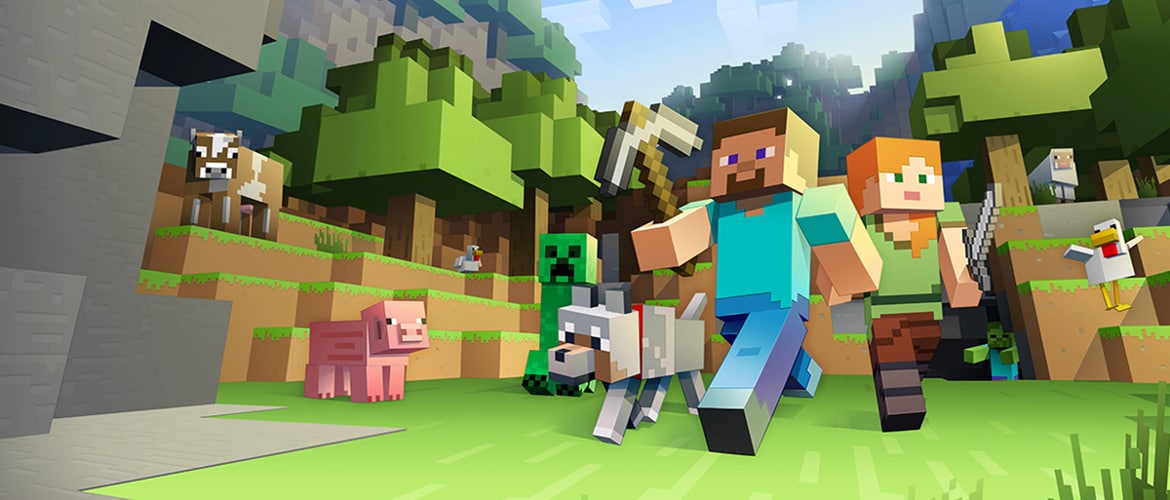
The newer launcher shown in the official beta announcement.
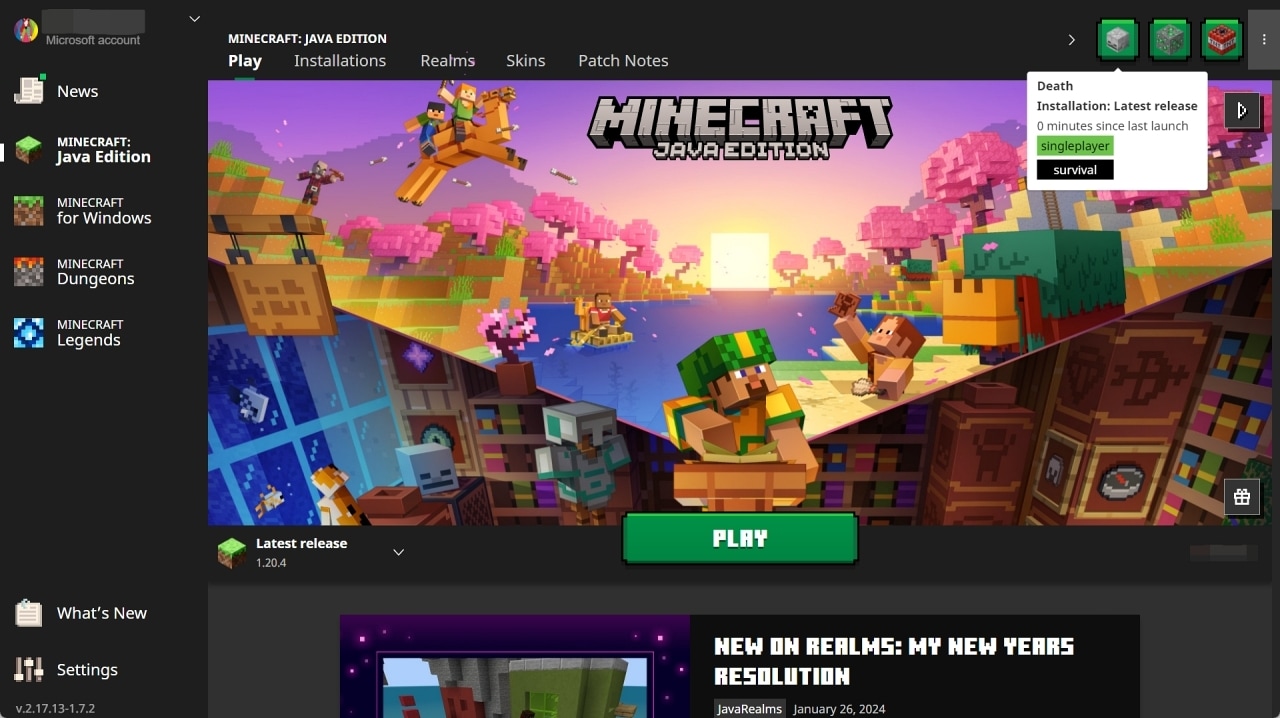
Quick Play is an older modern feature, shown here in the launcher.
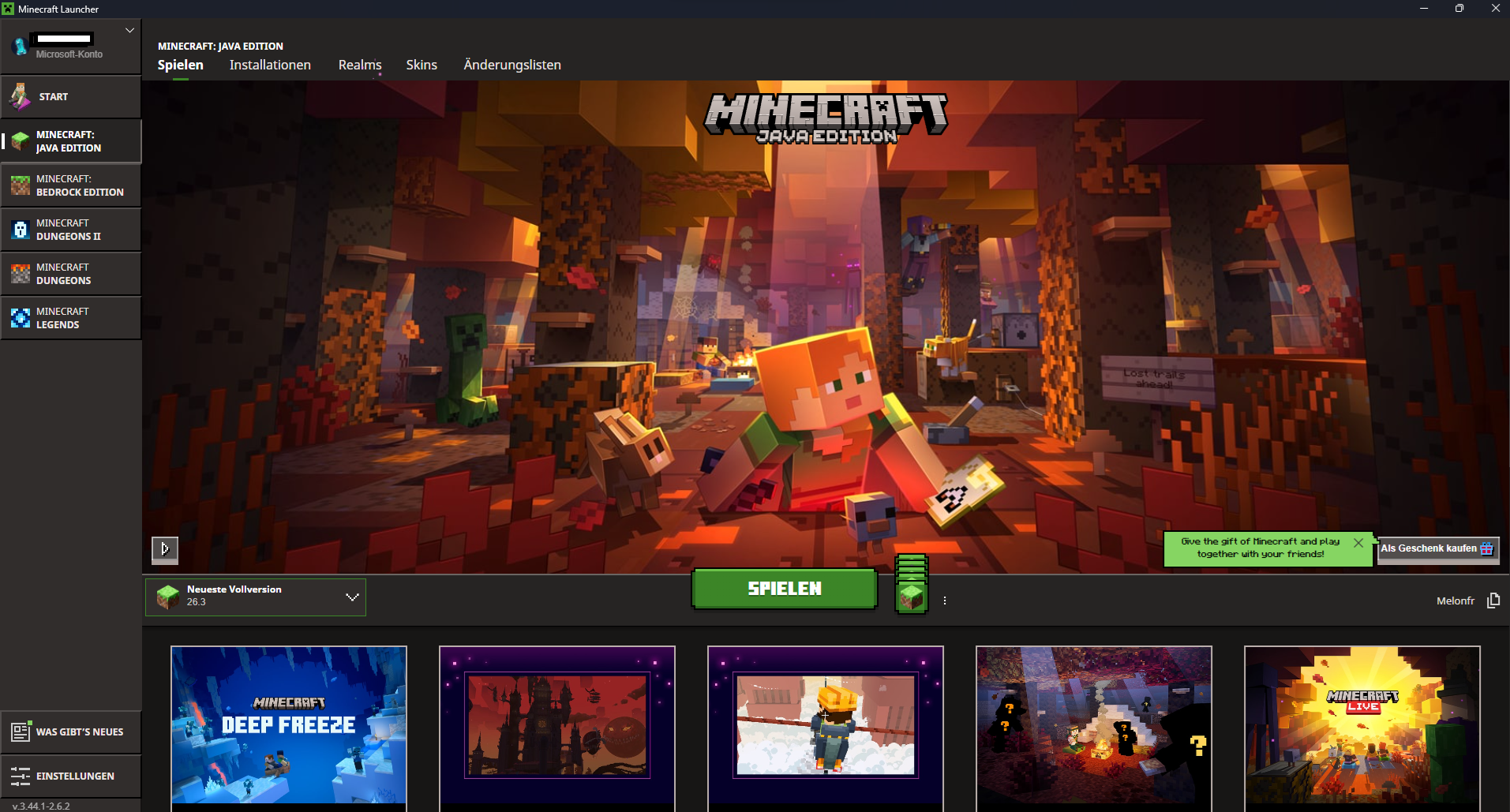
How the launcher looks today.
Mojang also uses the launcher as a place for seasonal events. Around Halloween, the app can pick up themed artwork and details, so even the window you click Play in can change with the time of year.
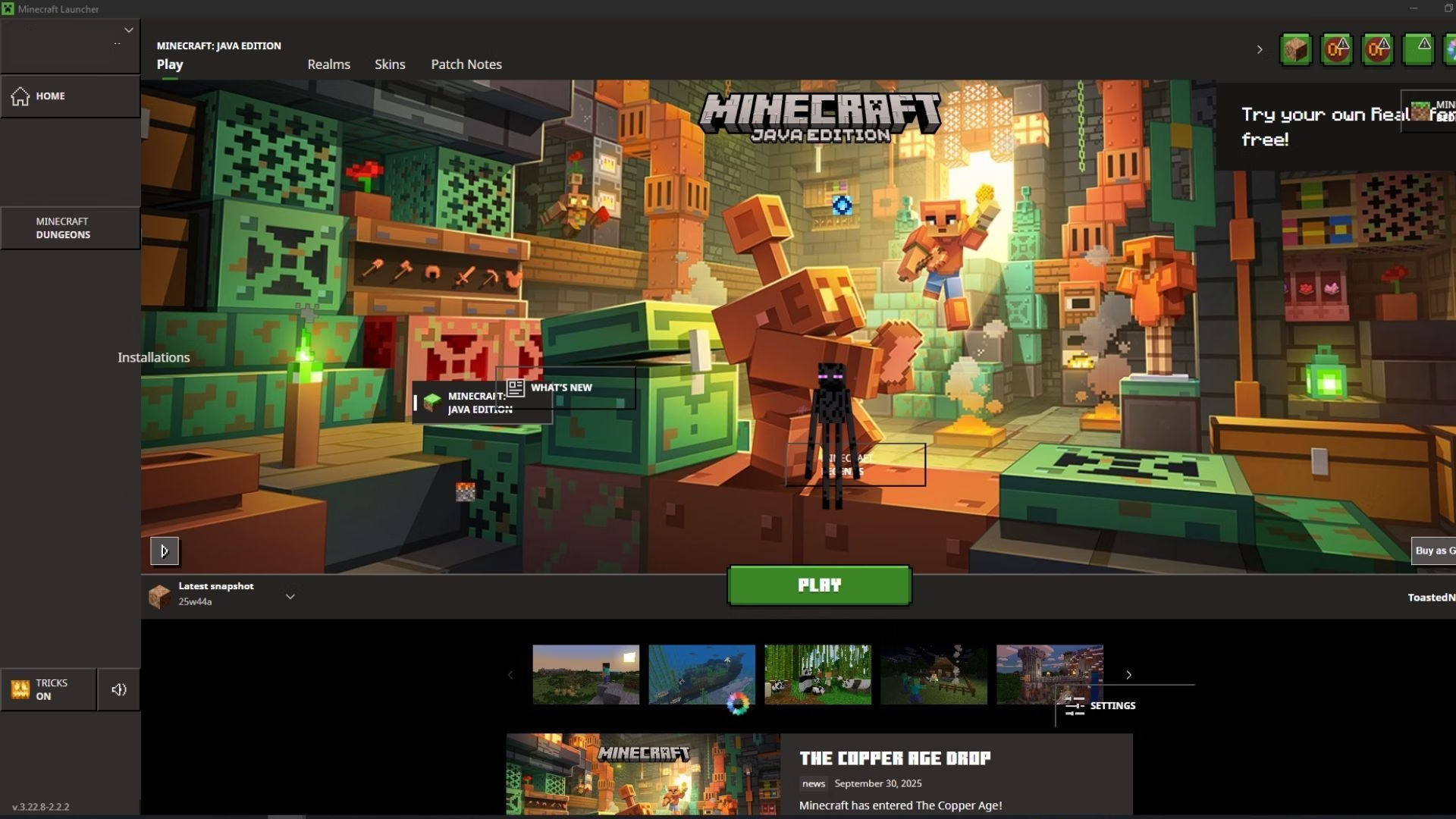
The launcher with Halloween themed artwork. The account name is covered.
It still does the quiet jobs too. It checks game files, keeps assets in the right folders and lets you choose exactly which version a profile should run. Most of the time you never notice it, which is a good sign that it is working.
Why the launcher matters
It is easy to see the launcher as just a door you click through. It is more than that. It is the reason you can jump between old versions, test snapshots, manage separate game folders and keep your account safe in one place.
Without it, modded setups and version hopping would be a lot messier. A lot of the freedom people love about Java Edition exists because the launcher makes room for it.
Where it goes next
The launcher keeps changing. Account systems move, editions get closer together and new tools arrive for managing game versions. Seasonal events can also give the app a different look, such as Halloween themed artwork. The basic job stays the same though: get you from a click to a world as smoothly as possible.
From a Java applet in a browser tab to a launcher that handles several editions, it has been a long road. The next time you open Minecraft, spare a thought for the players who had to keep Java happy in their browser just to place their first block.
TL;DR
- Minecraft started in 2009 as a Java applet on minecraft.net, played inside the browser.
- A standalone launcher later moved the game out of the tab and into its own window.
- The 2013 launcher brought profiles, multiple versions and snapshot support.
- Microsoft bought Mojang in 2014, and Mojang accounts were migrated to Microsoft accounts in 2022 and 2023.
- The modern launcher handles Java and Bedrock on Windows, updates, versions and sign in.
- Mojang also themes the launcher for seasonal events, including Halloween.
- That freedom is why Java players can jump between versions and test snapshots so easily.
Sources
- Official Minecraft download page
- The New Java Launcher is Live written by Kelsey Howard
- Try the new Minecraft launcher beta, official Minecraft article written by Minecraft Staff
- Quick Play is coming to Java and Bedrock Edition written by Cristina Anderca
- How to create a Minecraft account, official Minecraft article written by Minecraft Staff
- Minecraft account migration video
- Minecraft help centre
- Most launcher screenshots come from the official Minecraft.net articles linked above. The early launcher, current launcher and Halloween seasonal images were supplied by a reader.